Poster prompt templates for MOSS-Image: menus, sale flyers and more
Two reusable poster prompt templates with real MOSS-Image results, plus a mistake we made ourselves that put unwanted text in the image.
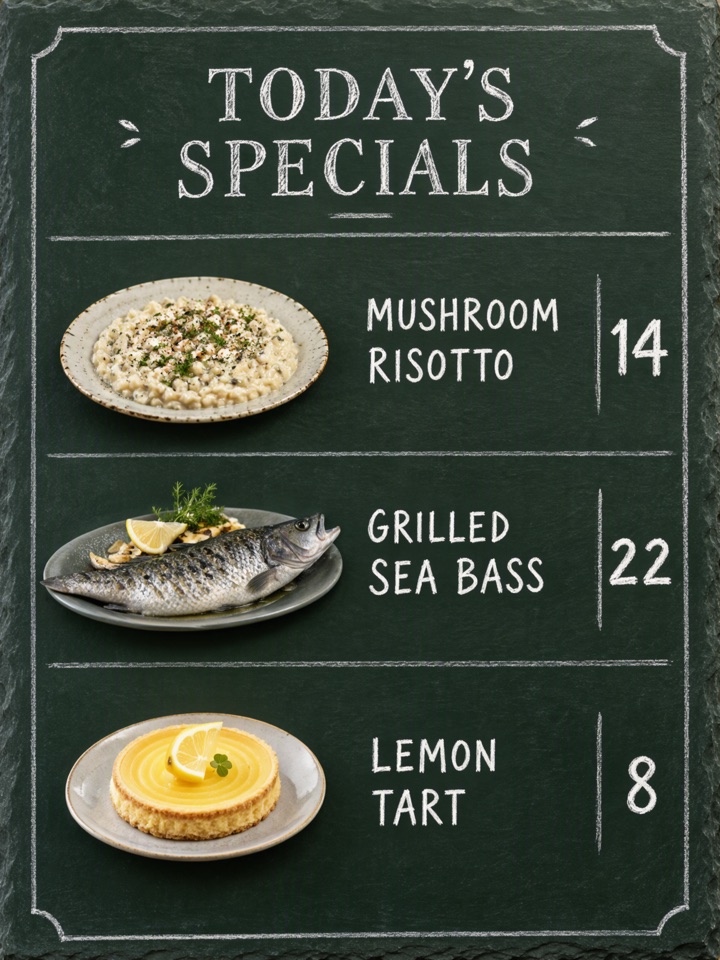
Most poster prompts fail for a boring reason: the wording mixes the copy you want printed with the description of the look. These two templates keep them apart. Both results below came from moss-image-sft-1.0 through the official MOSS API on the first attempt, and we checked the text with OCR.
Template 1: a chalkboard menu
Restaurant menu board, chalk on dark green slate. Title: 'TODAY'S SPECIALS'.
Three rows, each with a dish and a price:
'MUSHROOM RISOTTO  14', 'GRILLED SEA BASS  22', 'LEMON TART  8'.
Hand-drawn chalk border. No other text.
The OCR pass found the title and all three rows with their prices.
Pattern: format and material, then a quoted title, then one quoted line per row, then the visual extras, then "No other text."
Template 2: a sale flyer, and our mistake
Retail sale flyer, bright yellow background, black bold sans-serif.
Huge text: '50% OFF'. Below: 'END OF SEASON SALE'.
Footer: 'ALL STORES • 1–7 DEC'. No other text.
The headline, the second line and the footer came out correctly. But the OCR also found an extra line, "RETAIL SALE", that we never quoted. The phrase "Retail sale flyer" at the start of our own prompt was a description, yet the model printed it as text.
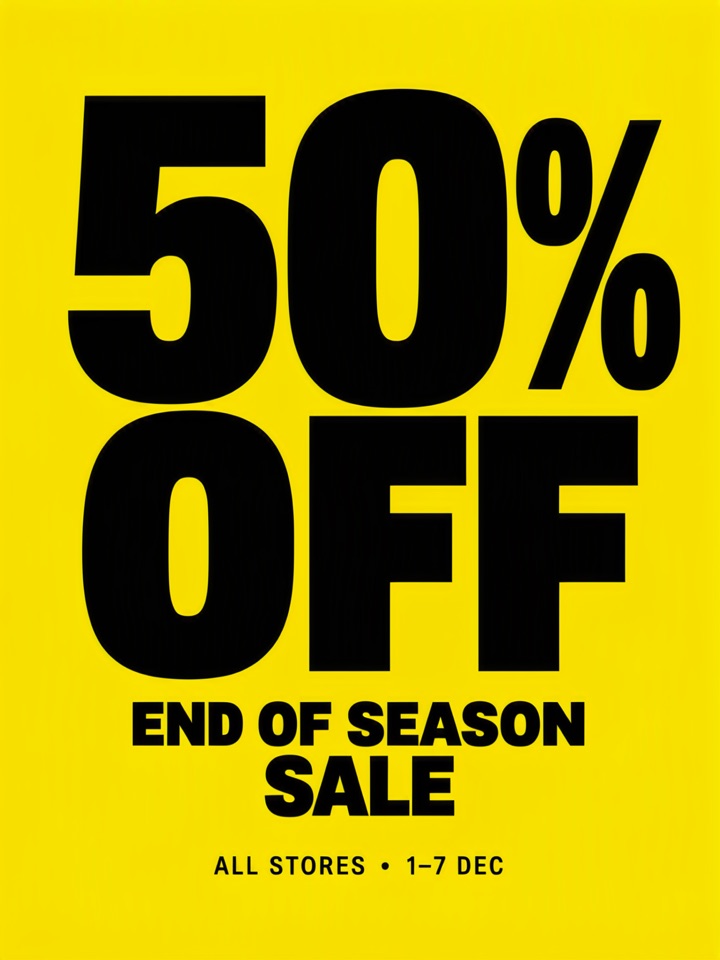
The fix is to describe the format with words that are not likely to be mistaken for copy, or to say plainly what the image is not allowed to contain. Keep quoted text in quotes and everything else clearly stylistic. If extra words appear, shorten the descriptive part of the prompt first.
A short checklist
- Quote every word you want printed, and give each line its own sentence or row.
- Keep descriptive phrases free of anything that reads like a headline.
- End with "No other text." It helps but is not a guarantee, as the flyer shows.
- Proofread numbers, dates and punctuation on the generated image before you publish it.
Try the templates in the studio. Background on quoting rules is in how to write prompts for exact text.
This studio is an independent service and is not affiliated with the OpenMOSS team.