MOSS Prompt Studio: From Chinese Draft to ComfyUI Prompt
See how a community ComfyUI node pack moves from a Chinese draft through a visual editor, optional translation and validation into native MOSS-Image nodes.

MOSS Prompt Studio is a community ComfyUI node pack for turning a Chinese MOSS-Image draft into a compiled prompt. Its README describes a visual Editor, a Translator that uses an OpenAI-compatible model, and a Compiler that follows the MOSS-Image prompt skill's format and validates the result. It is a beta project maintained by one person, not an OpenMOSS product.
TL;DR
- The documented chain is Editor → Translator → Compiler → native MOSS-Image nodes.
- The Editor is a visual canvas for manually arranging and checking a draft; translation requires an OpenAI-compatible model.
- The Compiler validates and emits the prompt format described by the MOSS-Image skill; it does not replace that skill.
- The current version is v1.10.0-beta3, with one maintainer, and its recommended workflow assumes a community Turbo checkpoint.
What does MOSS Prompt Studio do?
The repository describes a ComfyUI workflow for working with a Chinese draft or prose-style prompt before sending it to native MOSS-Image nodes. It puts three jobs in sequence. The Editor gives the user a canvas to lay out, resize, compare and validate elements. The Translator turns Chinese into English using an OpenAI-compatible large language model. The Compiler formats and checks the output against the MOSS-Image skill's conventions.
That boundary matters. The project helps prepare an input; the final image is still generated by the connected native MOSS-Image nodes. The README also shows an optional ImageReverse node before the Editor, but it is not part of the required Editor → Translator → Compiler chain. This is a community workflow, not a claim that OpenMOSS ships or maintains this editor.
The project was added to the MOSS-Image issue tracker by rabbitANDtank on November 11, 2026, in issue #36, titled “docs: add MOSS Prompt Studio to community projects.” That is a documentation change request with zero comments in the research notes, not a product announcement. The repository identifies its current version as v1.10.0-beta3 and says that beta3 is packaged for Comfy Registry with node behavior matching beta2 and no new node features. The repository is a single-maintainer community project.
How do Editor, Translator and Compiler differ?
| Stage | What the README says it does | What to keep in mind |
|---|---|---|
| Editor | Visual canvas with drag and resize, undo and redo, layers, overlap checks, ratio and pixel presets, snapping, background comparison and live validation | This is a manual visual editing stage for the draft. |
| Translator | Chinese-to-English translation using an OpenAI-compatible LLM; it can reuse the previous successful translation | Translation depends on a compatible model being available. |
| Compiler | Compiles in the MOSS-Image skill's format and performs strict validation; caption output is plain text and layout or compiled output is one-line JSON | It prepares a conforming prompt; it does not replace the prompt skill itself. |
The README's own summary describes taking a Chinese prompt draft or prose-style prompt, editing it visually in ComfyUI, translating it to English, compiling it in the MOSS-Image format, then connecting it to native generation nodes. It is useful to think of the Editor as the canvas, the Translator as a separate language step, and the Compiler as formatting and validation. The descriptions do not establish that any one stage guarantees the resulting image's text or composition.
What does a compiled draft look like?
The first example is a Chinese workshop poster with one line for each idea: “周末花艺小课,” “2027年3月13日 周六 · 15:00,” “社区活动室二层,” and “名额12人 · 免费.” The workshop name, date, room, capacity and free-entry line are invented examples, and the closure notice's own dates are that sample shop's choice. The image keeps the small still life of a vase, grasses and eucalyptus beside a blank card, while the copy is the kind of separated draft a visual canvas can arrange.
Make one like this Open this image on MOSS Image
Prompt mode, exact prompt:
A vertical composition in muted sage, warm white and dried-grass beige: one small plain ceramic vase holding a loose bunch of dried grasses and a few eucalyptus stems beside a blank kraft card, with broad calm margins and no other lettering, labels, seals, price tags or lettering-bearing objects in the frame. Copy: headline '周末花艺小课'; line '2027年3月13日 周六 · 15:00'; line '社区活动室二层'; footer '名额12人 · 免费'.
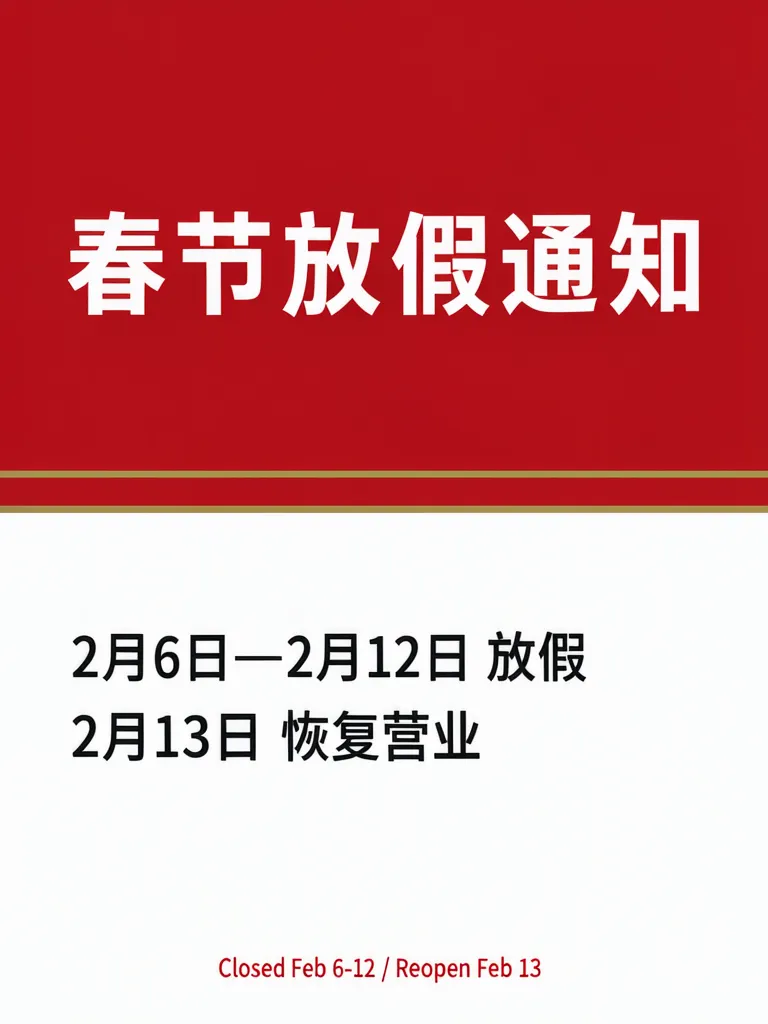
The second example is an earlier bilingual closure notice, reused here. It is a clean two-block Chinese-and-English sheet: the Chinese headline sits in a red block, the Chinese date lines in the white block, and the English closure and reopening line at the foot.
Make one like this Open this image on MOSS Image
Prompt mode, exact prompt:
A holiday closure notice built as two stacked blocks: a red block at the top carrying the headline in white, a white block below it with the Chinese dates left-aligned, and the English line at the very foot in small red type, with one thin gold rule between the blocks. Set these words verbatim: headline '春节放假通知'; line '2月6日—2月12日 放假'; line '2月13日 恢复营业'; footer 'Closed Feb 6-12 / Reopen Feb 13'.
Both examples carry the requested copy. They show what a draft with explicit lines can look like once the layout has a visual hierarchy: one is a short event announcement, the other puts Chinese and English information in separate blocks. They are examples from the hosted studio, not screenshots of the ComfyUI node pack, and they do not demonstrate what Prompt Studio itself generated.
Which checkpoint does its workflow assume?
The README's recommended workflow names rayMossArtshoot_sftTurboV1.safetensors as the checkpoint and moss/qwen3.5_9b_int8_convrot.safetensors as the CLIP model, with moss/flux2-vae.safetensors as the VAE. That Turbo checkpoint is a community file. The same README says it can be replaced with MOSS-Image Base or SFT and the sampling parameters should follow the relevant model card. So “recommended workflow assumes a community Turbo checkpoint” is a fair description of its default setup, but it is not a requirement imposed by the node pack.
This distinction also prevents a naming mix-up: the Compiler follows the MOSS-Image skill's format. It does not make Prompt Studio an official tool, and the project does not claim to replace the skill. The README's beta note further says the current Registry package has no new node behavior compared with beta2. Treat the version as a beta release rather than as a finished or vendor-supported product.
How can you prepare a draft for this workflow?
- Write the required copy as separate lines and decide what belongs together before opening the canvas.
- In ComfyUI, use the Editor stage to arrange and check the visual draft; the README lists resizing, layers, overlap detection and live validation among its functions.
- If you need Chinese-to-English translation, connect an OpenAI-compatible model for the Translator stage. Review its wording instead of treating translation as approval.
- Pass the draft through the Compiler for the documented MOSS-Image format and validation, then connect its output to the native generation nodes.
- Inspect the generated image against the original copy. The AI poster generator is the hosted, no-local-setup option; the Layout Builder and exact-text guide explain structured boxes and text proofreading.
MOSS Image Studio is an independent hosted studio for the open MOSS-Image model. Not affiliated with OpenMOSS.
Limitations
Prompt Studio is a beta community project with one maintainer. Its Translator requires an OpenAI-compatible model, and the recommended workflow uses a community Turbo checkpoint, although the README says Base or SFT can be substituted. The project compiles to the MOSS-Image skill's format; it is not the skill itself and is not an official OpenMOSS editor. The two posters above illustrate draft-like copy and layout, not the node pack's output.
FAQ
Is MOSS Prompt Studio an official OpenMOSS tool?
No. It is a community ComfyUI node pack maintained by rabbitANDtank. The project was listed in an issue opened by that contributor; the README describes its own beta version and workflow.
Does MOSS Prompt Studio translate Chinese prompts automatically?
Its Translator stage translates Chinese to English using an OpenAI-compatible LLM. The README also describes reusing the previous successful translation. A compatible model is therefore part of that stage's requirements.
Does Prompt Studio replace the MOSS-Image prompt skill?
No. The README says its Compiler follows the skill's format and validates the compiled result. That makes the project a workflow that compiles to the format, rather than a replacement for the skill.
Sources
- MOSS Prompt Studio community repository (Checked on 2026-11-12).
- OpenMOSS issue #36: “docs: add MOSS Prompt Studio to community projects” (Checked on 2026-11-12).
Try it with your own words
Open the Studio, write a brief or lay out boxes on the canvas, and generate with MOSS-Image.