Class timetable announcement poster for a few clear sessions
Build a class timetable announcement poster that groups each date, time and topic together, with practical checks for a short multi-session schedule.
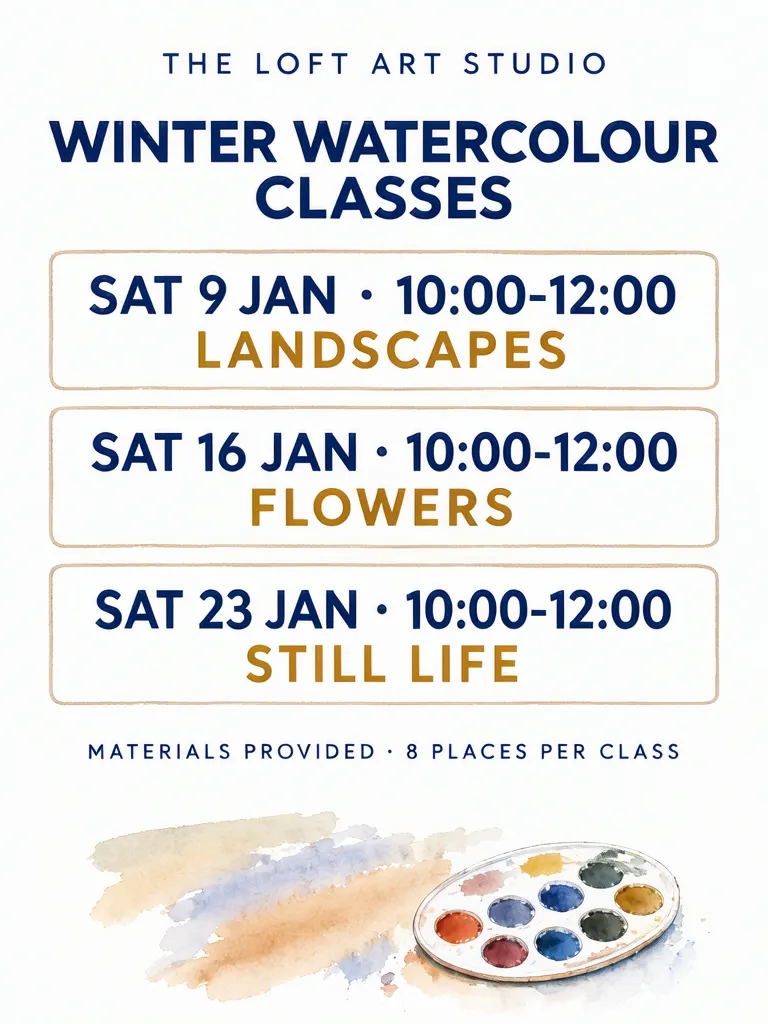
A class timetable announcement poster works for a few sessions when every date, time and topic stays visually attached. We made a three-session winter watercolour example for Saturdays, January 9, 16 and 23, 2027. Each meeting runs 10:00–12:00, with Landscapes, Flowers and Still Life as the topics. The studio, schedule and class details are invented examples, not a real course listing.
TL;DR
- Put each session’s date, time and topic inside one visual group.
- Keep the session groups distinct from one another.
- Check that a topic cannot be mistaken for the next date.
- For more than a handful of sessions, use a table or document instead of squeezing everything onto a poster.
What belongs in a class timetable announcement?
For a short course, show the organizer, course title, each session’s date and time, its topic, and any practical note that applies across sessions. Our example lists three Saturday classes and says “MATERIALS PROVIDED · 8 PLACES PER CLASS.” The studio and schedule are made up for this example.
Make one like this Open this image on MOSS Image
Made in the Layout Builder with these boxes:
| Box text / object | Job | Approximate position |
|---|---|---|
| THE LOFT ART STUDIO | Studio name | Top |
| WINTER WATERCOLOUR CLASSES | Course title | Upper area |
| SAT 9 JAN · 10:00-12:00 | Session 1 date and time | First rounded box |
| LANDSCAPES | Session 1 topic | Inside first box |
| SAT 16 JAN · 10:00-12:00 | Session 2 date and time | Second rounded box |
| FLOWERS | Session 2 topic | Inside second box |
| SAT 23 JAN · 10:00-12:00 | Session 3 date and time | Third rounded box |
| STILL LIFE | Session 3 topic | Inside third box |
| MATERIALS PROVIDED · 8 PLACES PER CLASS | Shared note | Footer |
| Watercolour strokes and palette | Decoration | Bottom |
All nine required lines came out correctly on the first try. Each date and its topic sit inside the same rounded box. The shared materials and places note is separate from the individual session details.
What changes when the schedule is shown as a photo?
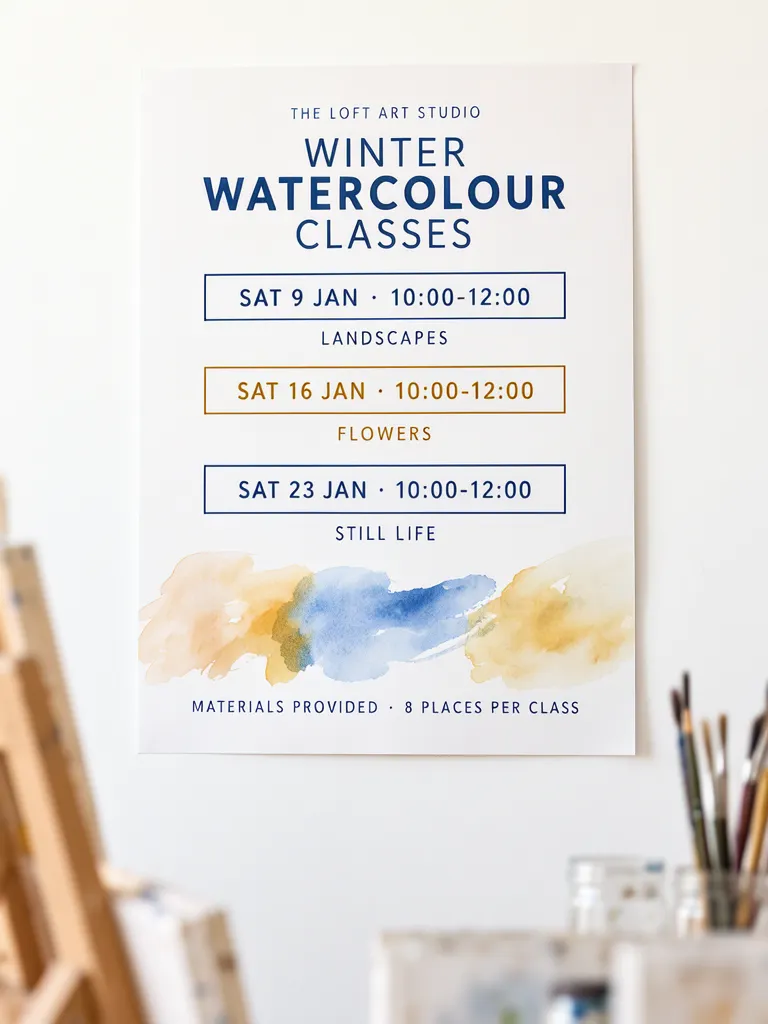
The second version puts the poster on a studio wall. Its nine lines were also correct on the first try, and the middle box is ochre while the other two are indigo. But the dates remain inside their boxes while each topic sits underneath its box. With one session this might still be easy to infer; with several, the boundary tells a reader which topic belongs to which date. Keep a session’s topic inside the same box so the association survives quick scanning.
Make one like this Open this image on MOSS Image
Made in prompt mode with this exact prompt:
Photograph of a printed class poster pinned alone on a plain white wall of an art studio, an easel and jars of brushes softly blurred below, the poster flat and in sharp focus. White paper, indigo and ochre type, three session boxes stacked, each with the date and time and its topic underneath, loose watercolour strokes at the bottom. No other papers on the wall. The printed piece holds only the quoted text, and nothing else in view carries any writing: no other signs, labels, stickers or notes. Text, render exactly and add nothing else: small top line 'THE LOFT ART STUDIO'; headline 'WINTER WATERCOLOUR CLASSES'; box 1 'SAT 9 JAN · 10:00-12:00'; under it 'LANDSCAPES'; box 2 'SAT 16 JAN · 10:00-12:00'; under it 'FLOWERS'; box 3 'SAT 23 JAN · 10:00-12:00'; under it 'STILL LIFE'; footer 'MATERIALS PROVIDED · 8 PLACES PER CLASS'.
The prompt describes each topic as under its date box, and that is what the photo version shows. For your own poster, specify that date and topic share one box if the grouping itself matters.
How should several sessions be compared?
| Session | Example date and time | Topic | Grouping check |
|---|---|---|---|
| 1 | Sat 9 Jan · 10:00-12:00 | Landscapes | Both inside box 1 |
| 2 | Sat 16 Jan · 10:00-12:00 | Flowers | Both inside box 2 |
| 3 | Sat 23 Jan · 10:00-12:00 | Still Life | Both inside box 3 |
This format is suited to a few entries that fit comfortably at readable size. A long term calendar, changing registrations or many overlapping sessions belongs in a table or document, where rows and columns can carry more information without a crowded poster.
What should you check before publishing?
Both versions preserved all nine lines on the first try. In the photo version, each topic is below rather than inside its date box, which makes the relationship less immediate. Check every topic-date pair in order, confirm shared notes apply to all sessions, and inspect the poster at the size people will actually read. If the associations feel ambiguous, simplify the artwork or move the topic into its matching box.
How do you make a class timetable poster?
- Choose a 3:4 portrait canvas for a short list, then write one complete date-time-topic entry per session.
- In the Layout Builder, make a separate box for each session and put its date, time and topic inside that box. Add shared details in a footer.
- For a photographed studio scene, use the AI poster generator and state the grouping explicitly. See the JSON layout guide for box-based planning.
- Verify each date-time-topic pair from top to bottom, then check the shared note and readability at the intended display size.
MOSS Image Studio is an independent hosted studio for the open MOSS-Image model. Not affiliated with OpenMOSS.
FAQ
How many sessions should fit on a timetable poster?
Use it for a few sessions that remain easy to scan. A larger or changing schedule is clearer in a table or document.
Should the topic go inside the date box?
Yes, if the poster has multiple sessions. Keeping the topic and date in one boundary makes their relationship easier to follow.
What shared details belong in a footer?
Only details that apply to every session, such as a general materials note or a shared capacity note. Put session-specific information with that session.
Try it with your own words
Open the Studio, write a brief or lay out boxes on the canvas, and generate with MOSS-Image.