Generated Lettering vs Editable Text for Price Updates
Compare regenerating a price board with editing text layers, using our same-layout latte update and a practical checklist for every menu price.
Generated lettering versus editable text for price updates comes down to how often the copy changes. We regenerated one café board with a new latte price, then compared that workflow with placing editable text in a design tool. The shop name, drinks, prices and illustration in our boards are made up for the example. For a weekly menu, keeping prices editable can make repeated changes easier to review.
TL;DR
- Regenerate when the whole poster is a one-off and the design can be checked again.
- Keep frequently changing prices in editable text layers when you need direct control.
- After any regeneration, verify every price, not just the one you changed.
- Treat visual similarity in one test as an observation, not a promise.
What changed when we regenerated the board?
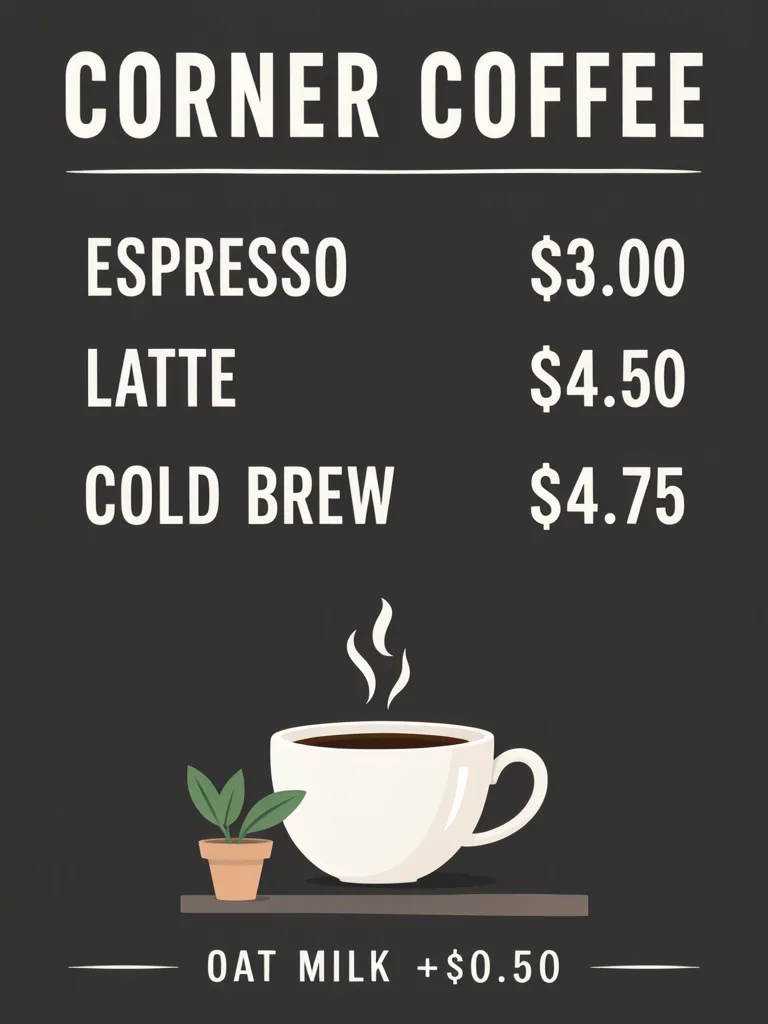
We changed only the latte price in the same 3:4 Layout Builder design: the first board says $4.50 and the second says $4.90. Both show CORNER COFFEE, espresso at $3.00, cold brew at $4.75, and oat milk at +$0.50. The regenerated board looks almost identical; the visible differences are the latte price and small details in the cup steam.
Make one like this Open this image on MOSS Image
Made in the Layout Builder with these boxes:
| Box text / object | Job | Approximate position |
|---|---|---|
| CORNER COFFEE | Shop name | Top |
| ESPRESSO $3.00 | Drink and price | Upper middle |
| LATTE $4.50 | Drink and price | Middle |
| COLD BREW $4.75 | Drink and price | Lower middle |
| Coffee cup and plant | Illustration | Below the rows |
| OAT MILK +$0.50 | Add-on price | Bottom |
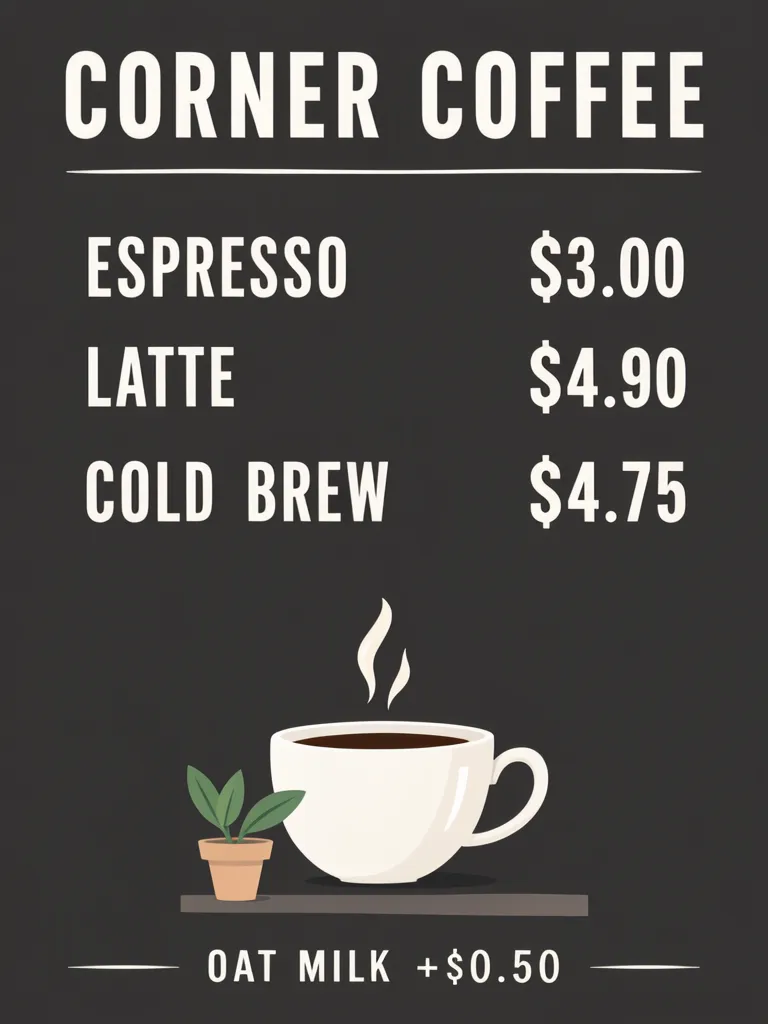
Make one like this Open this image on MOSS Image
Made in the Layout Builder with these boxes:
| Box text / object | Job | Approximate position |
|---|---|---|
| CORNER COFFEE | Shop name | Top |
| ESPRESSO $3.00 | Drink and price | Upper middle |
| LATTE $4.90 | Drink and price | Middle |
| COLD BREW $4.75 | Drink and price | Lower middle |
| Coffee cup and plant | Illustration | Below the rows |
| OAT MILK +$0.50 | Add-on price | Bottom |
When does regeneration fit better than editable text?
Regeneration fits a one-off poster when changing the price may also be a chance to refresh the image, and you can inspect the new result before using it. Editable text fits a board whose prices change weekly: direct text layers let you replace wording in the design document rather than asking an image model to redraw the lettering each time.
Adobe Express makes posters from templates whose text stays editable. Ideogram’s text-in-images guide describes editable text layers in its Studio. We did not test either tool for this post.
| Workflow | Fits when | What to check |
|---|---|---|
| Regenerate the board | A one-off poster can be reviewed as a complete new image | Every price, label and condition, including unchanged rows |
| Edit text in a design tool | The same board needs frequent price updates | Alignment, spelling and that each price still belongs to the right drink |
A repeated menu often benefits from separating stable artwork from information that changes. Keep a clean source layout with the approved item names and prices, then decide which elements should remain editable before the next update. A text layer also needs proofreading: direct editing makes the characters controllable, but a person still has to confirm the amount and placement.
How should you check a regenerated menu?
Compare the full board against the current approved price list. Do not stop at the changed row: copy or visually inspect each drink and price, then check add-ons, currency symbols and the shop name. Look at the result at the size customers will see it, and inspect the printed proof if it will be printed.
The same seed and layout gave us a nearly identical board in this pair, but this is one test, not a guarantee. Our steam detail changed slightly. A different generation may alter other parts, so check the complete composition and all written information each time.
How do you make your own price-update comparison?
- In the Layout Builder, use a 3:4 canvas and make separate boxes for the shop name, each drink-price row and add-on.
- Generate the approved board once, then change only the price you intend to update and generate again. Keep the same row order and illustration description for a useful comparison.
- Put both outputs side by side and check every price, including unchanged ones, then compare the artwork for incidental changes. Read the JSON Layout guide for box planning.
- If you need to change prices every week, consider keeping those words as editable text in a design tool.
MOSS Image Studio is an independent hosted studio for the open MOSS-Image model. Not affiliated with OpenMOSS.
FAQ
Is generated text editable after the image is made?
The generated lettering is part of the image. A design tool may let you add separate editable text layers; check the tool’s documentation for its text controls.
Should I regenerate a menu after one price changes?
You can, but review every price and the rest of the board after regeneration. If changes are frequent, editable text layers may better suit that workflow.
How do I avoid assigning a price to the wrong item?
Keep each item and amount together in a row or clearly aligned pair, then verify each association against the current menu before publishing.
Sources
- Adobe Express poster maker — Checked on 2026-11-03.
- Ideogram: Text in Images — Checked on 2026-11-03.
Try it with your own words
Open the Studio, write a brief or lay out boxes on the canvas, and generate with MOSS-Image.