AI Poster Adds a Translation? Check the Language List
Compare three Chinese closure notices and learn to check languages and lines against your brief, including background signs that may carry stray text.
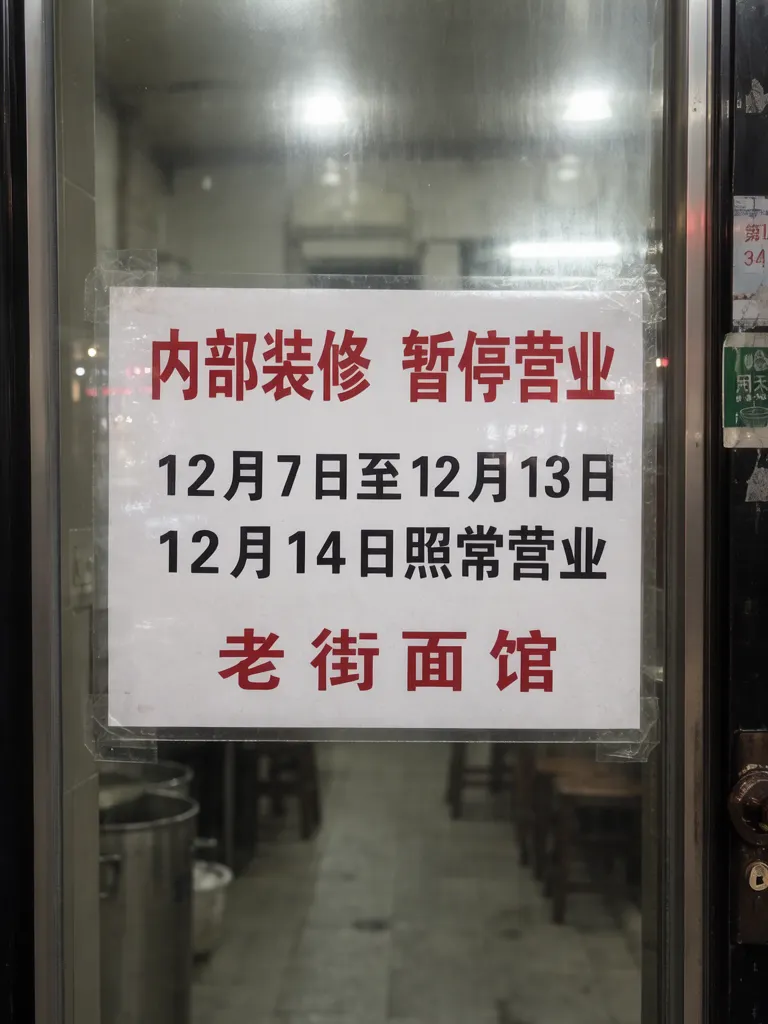
Unexpected translations are worth checking, but they did not appear on any of the three Chinese closure notices we generated. Each notice stayed Chinese only. The extra writing appeared in the surroundings instead: blurred street signage, fridge labels, and a door-frame sticker with garbled characters and “34.” Compare the language and line inventory with your brief, then inspect the full scene. The shop name and closure dates are invented examples.
TL;DR
- In our three tests, none of the notices gained a translation.
- Compare the languages and each requested line with your written brief.
- If it matters, state “Chinese only” and list languages you do not want.
- Inspect glass, signs, labels and door frames for background writing.
Did the notice add an English translation?
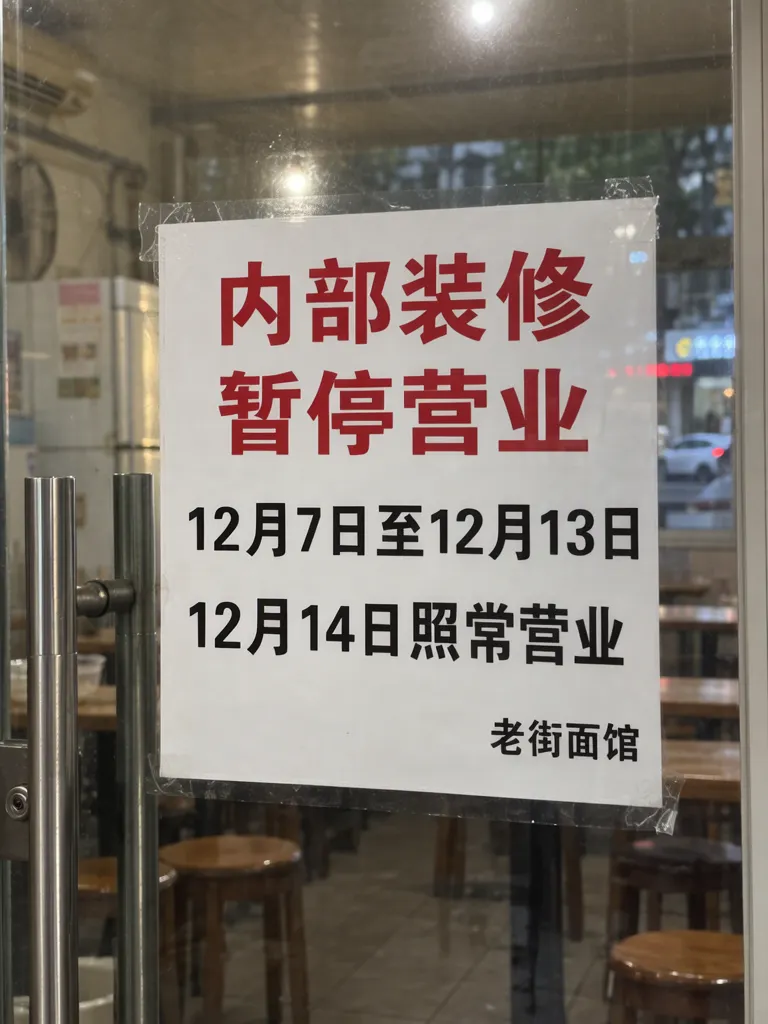
No. The first notice prompt did not specify a language, yet all four requested lines appeared in Chinese only. The heading “内部装修 暂停营业” wrapped across two lines. We did not see an English translation on the paper. We did see a blurred street sign with unreadable characters and a logo through the glass, plus labels on a fridge.
Make one like this Open this image on MOSS Image
Made in prompt mode with this exact prompt:
Photograph of a printed notice taped inside the glass door of a small noodle shop, evening light, the notice flat and sharp, white paper with red and black type. The notice reads '内部装修 暂停营业', '12月7日至12月13日', '12月14日照常营业', '老街面馆'.
That is the result in this image, not a reason to leave language requirements unstated in your own work. If the notice is meant for one language, include that choice in the prompt. Also check whether any second language is expected: a bilingual brief should list the exact translated lines, not just say “make it bilingual.”
What changed when we asked for Chinese only?
The second notice also stayed Chinese only, with the title on one line and the shop name in red. It did not add an English version. However, a sticker on the right edge of the door frame carried garbled characters and “34,” even though the prompt asked for no other writing. The notice copy itself remained correct.
Make one like this Open this image on MOSS Image
Made in prompt mode with this exact prompt:
Photograph of a printed notice taped inside the glass door of a small noodle shop, evening light, the notice flat and sharp, white paper with red and black type. Chinese only: no English, no pinyin and no translation anywhere. The printed piece holds only the quoted text, and nothing else in view carries any writing: no other signs, labels, stickers or notes. Text, render exactly and add nothing else: title '内部装修 暂停营业'; line '12月7日至12月13日'; line '12月14日照常营业'; line '老街面馆'.
The language instruction is a useful part of a specific brief, and it matched the notice in this image. The remaining issue was in the photographed setting, not a translation of the closure copy. When background text could confuse a customer, use a quieter scene and inspect the whole frame, including edges and reflections.
Did a visitor-focused setting add translation text?
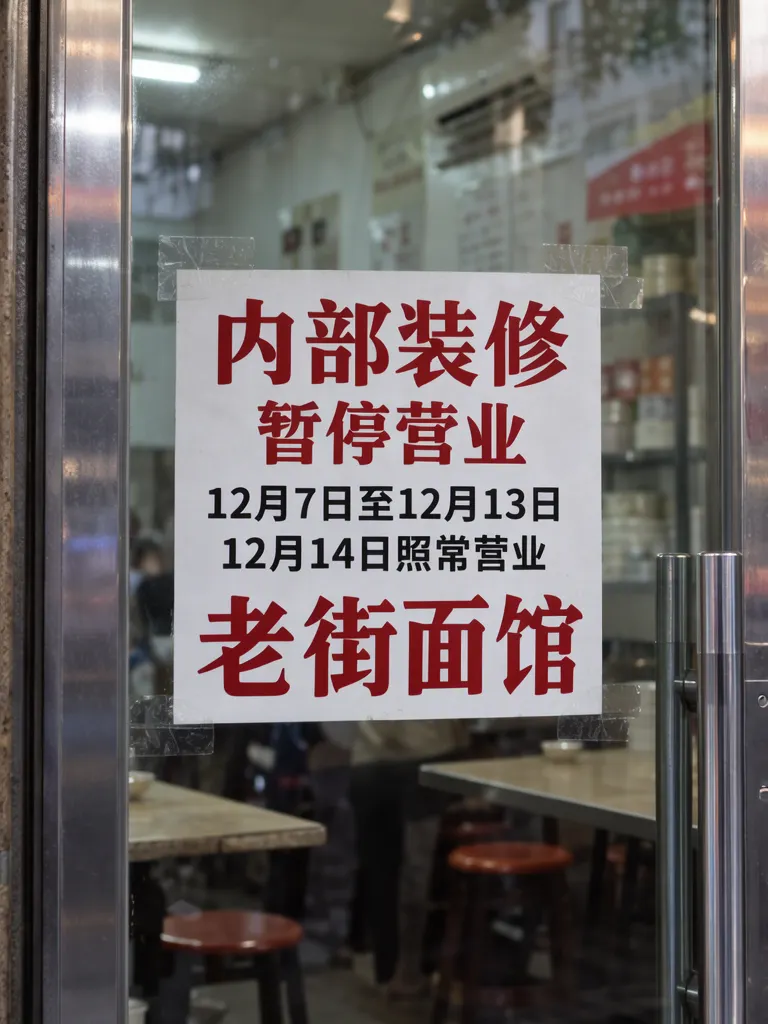
No. The third prompt described a street popular with overseas tourists, but the four notice lines still appeared in Chinese only. In the background, the glass showed a red banner and wall signs with unreadable characters. Across all three tests, no translation appeared on the notice; the extra text was all in the background.
Make one like this Open this image on MOSS Image
Made in prompt mode with this exact prompt:
Photograph of a printed closure notice taped inside the glass door of a small noodle shop on a street popular with overseas tourists, evening light, the notice flat and sharp, white paper with red and black type. The closure notice says the shop is closed for renovation from 7 to 13 December and reopens on 14 December: '内部装修 暂停营业', '12月7日至12月13日', '12月14日照常营业', '老街面馆'.
Use a language inventory as a proofreading step. Write down each language that should appear, then list the required lines in each language. Compare those lists with the printed notice itself. A prompt that says “Chinese only” is inexpensive to add when English, pinyin or a translation would be wrong for the intended sign.
| Brief check | What to inspect | These images |
|---|---|---|
| Language inventory | Which languages are requested? | All three notices were Chinese only |
| Line inventory | Is every approved line present? | Four requested lines on each notice |
| Unrequested translation | Did another language appear on the paper? | No translation appeared in the three tests |
| Surrounding text | Are signs or labels legible in the scene? | Background signs, fridge labels or a sticker had extra marks |
How do you keep a notice in its intended language?
State the desired language and the exact wording for each line. If no other language should appear, say so directly. Then compare the generated paper against the language and line inventories. Check what is on the notice separately from what appears on glass, walls, labels, packaging or reflections; scene text can be mistaken for part of the message.
If the audience needs a bilingual notice, prepare and approve each translation before generating. Lay out the two language blocks in a clear reading order and verify that every line appears once. If only one language is needed, do not add a second version merely because a location is described as tourist-facing. Audience context does not replace an explicit copy decision.
How can you make a language-specific notice?
- Open the AI poster generator and choose a 3:4 notice format like our examples.
- Quote the title and each line exactly. State “Chinese only” when no translation or pinyin should appear.
- Generate the notice and compare the language list and line list against your brief.
- Inspect the whole photo scene for text on glass, signs, labels, stickers and objects near the edge.
See the exact-text guide for a practical way to specify quoted poster copy.
MOSS Image Studio is an independent hosted studio for the open MOSS-Image model. Not affiliated with OpenMOSS.
What did this translation test not establish?
Across three tries, no translation was added to the notice. The only extra writing was background signage or a door-frame sticker, including garbled characters and “34.” These observations do not show that the model tends to translate notices; they show why a language checklist and a full-frame review are useful. Chinese-only copy is cheap to specify when it matters.
FAQ
How do I stop an AI poster from adding a translation?
State the desired language explicitly, quote every approved line, and say which other languages should be absent. Then inspect the notice against that list.
Should a shop notice include pinyin?
Only if the intended audience needs it. State that requirement in your prompt and check whether it appears on the notice.
Why should I check the background of a photographed poster?
Signs, stickers and labels can carry visible writing that distracts from or looks like part of the notice. Check the full image, including the edges.
Did these tests show that a model automatically translates Chinese signs?
No. None of our three notices gained a translation. Extra text appeared only in the pictured surroundings.
Try it with your own words
Open the Studio, write a brief or lay out boxes on the canvas, and generate with MOSS-Image.