How to Correct a Misspelled Word in an AI-Generated Poster
See how a typo copied from a brief was corrected by regenerating with the same seed, what changed in the similar image, and when this studio cannot help.
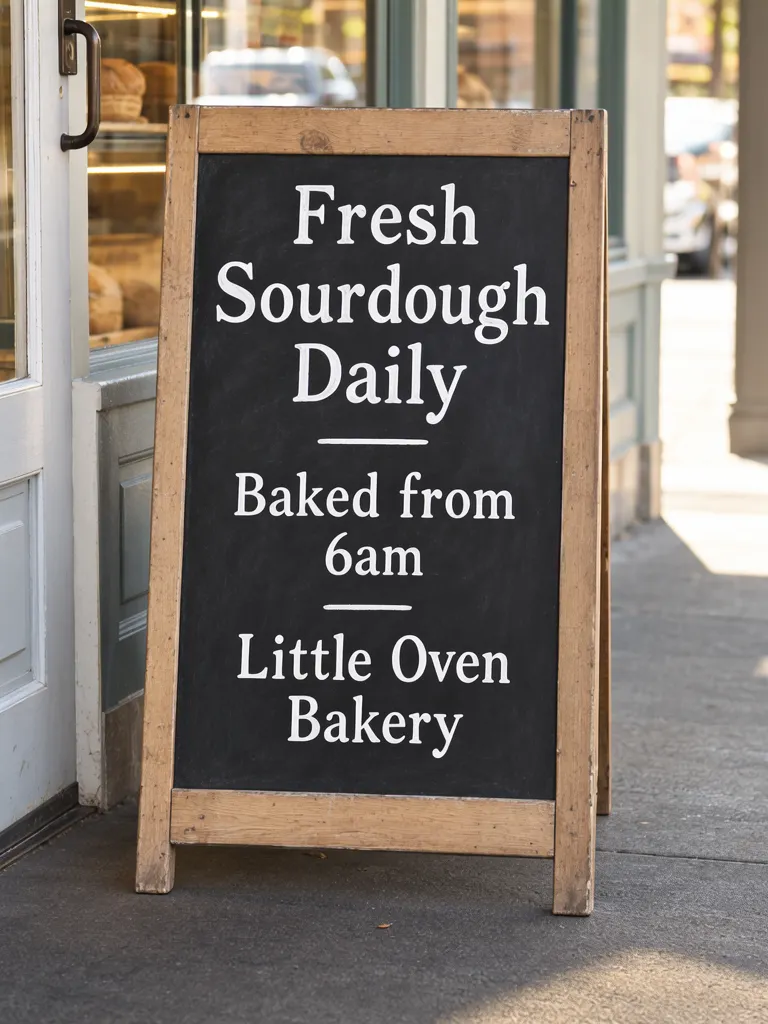
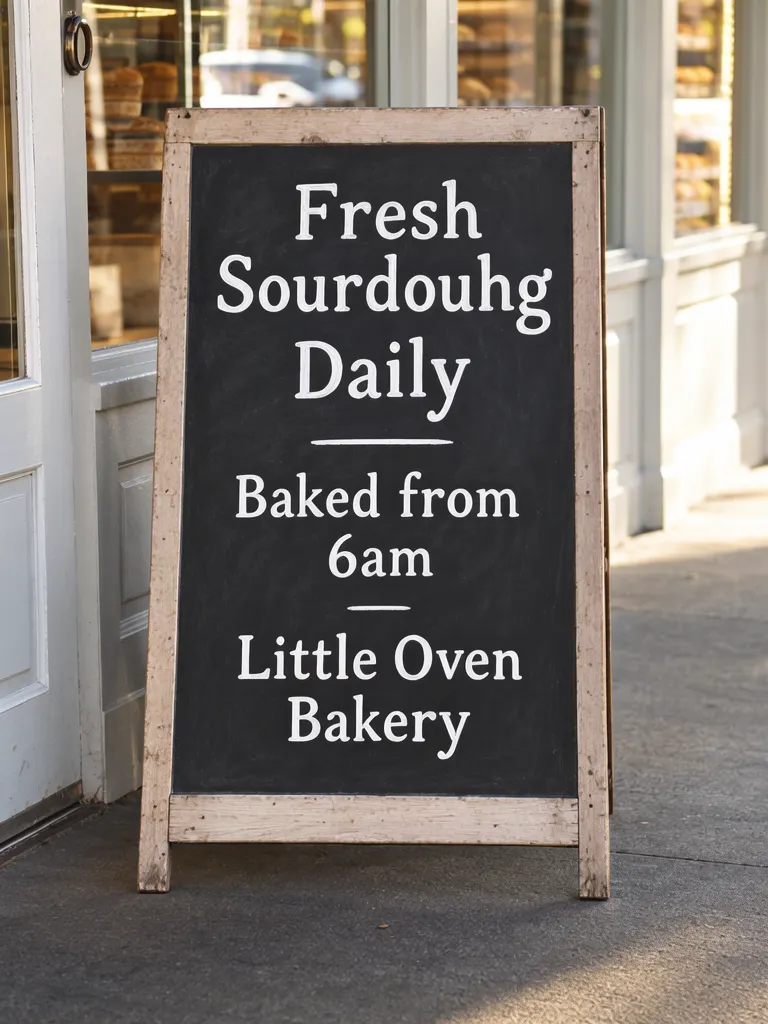
To correct a misspelled word in an AI-generated poster, fix the source text and generate a new image with the same seed when you want to keep a similar composition. In our bakery-sign pair, the image reproduced “Sourdouhg” exactly as written in the prompt. With only the headline corrected and the same seed reused, the regenerated sign showed “Sourdough” in a nearly identical composition. The bakery name and wording are invented examples.
TL;DR
- Check your prompt first: a generated typo may repeat a typo you supplied.
- Correct the source line before making another image.
- Reuse the seed to seek a similar composition, then compare the new image.
- This studio generates images; it does not repair an existing image.
Why did the poster repeat the typo?
Because the prompt itself said “Sourdouhg.” The first image rendered that misspelling exactly. Its other two lines, “Baked from 6am” and “Little Oven Bakery,” were right, although each wrapped onto two lines. This is a simple but useful first diagnosis: before changing style words or adding more instructions, compare the generated spelling with the text you entered.
Make one like this Open this image on MOSS Image
Made in prompt mode with this exact prompt:
Photograph of a printed A-frame chalkboard-style sign outside a bakery door, morning light, the sign flat to the camera and sharp, black board with white painted lettering. The printed piece holds only the quoted text, and nothing else in view carries any writing: no other signs, labels, stickers or notes. Text, render exactly and add nothing else: headline 'Fresh Sourdouhg Daily'; line 'Baked from 6am'; line 'Little Oven Bakery'.
When the source contains a typo, asking the image to copy it exactly is not a correction step. Keep a clean text source outside the generator, proofread it, then use that corrected source in a fresh generation. If the rest of the image is close to what you want, save its seed before making the change. The seed field can help you ask for a related result without assuming every visual detail will stay fixed.
What happened when we corrected only the headline?
We kept seed 61203 and changed only “Sourdouhg” to “Sourdough.” The new headline was correct, all three lines were right, and the composition was almost identical: the board, wrapping and doorway remained similar. The wood and street behind it changed slightly. One pair is one test, so treat seed reuse as a way to seek continuity, not a promise of an exact duplicate.
Make one like this Open this image on MOSS Image
Made in prompt mode with this exact prompt:
Photograph of a printed A-frame chalkboard-style sign outside a bakery door, morning light, the sign flat to the camera and sharp, black board with white painted lettering. The printed piece holds only the quoted text, and nothing else in view carries any writing: no other signs, labels, stickers or notes. Text, render exactly and add nothing else: headline 'Fresh Sourdough Daily'; line 'Baked from 6am'; line 'Little Oven Bakery'.
The useful workflow is to make a copy of the prompt, correct the spelling there, and retain the seed of the version whose composition you like. Generate the revised brief and inspect the output from top to bottom. Check that the corrected word appears in every place it is used and that line breaks, spacing and nearby details still work for the design.
| Situation | First action | What to expect |
|---|---|---|
| Typo is already in your prompt | Correct the source text and regenerate | The corrected word can appear in a fresh image |
| Prompt was correct but output has an error | Shorten or isolate the affected line and retry | The new result may change visually |
| Existing image needs a tiny local correction | Use a separate editing workflow | This studio does not edit an existing image |
Should you regenerate or edit the image elsewhere?
Regenerate here when a corrected brief can recreate the poster and a fresh image is acceptable. Start from the original prompt, fix the exact line, and copy the seed from the image you want to resemble. This is what we did for the bakery sign. The changed wood and street show why a seed does not lock every pixel or guarantee an identical background.
If you need to keep the existing image and change only a small region, this site does not provide that edit workflow. We did not test an external editing workflow for this correction, so check the chosen tool with your own image and task before relying on it.
For another example of how generated and editable artwork serve different update needs, see generated vs editable price updates. The exact-text guide covers separating wording from visual instructions. Use the AI poster generator for a fresh corrected generation; it cannot modify an existing image.
How do you make a corrected poster version?
- Keep the poster's wording in a source document and proofread names, dates and unusual spellings there.
- Open the AI poster generator and describe the sign, its setting and the exact copy in quotes.
- If you like an existing composition, copy its seed and use it with the corrected brief. Change only the text that needs fixing for a clearer comparison.
- Inspect the new image line by line, then compare composition and secondary details with the earlier version.
Read the exact-text guide for a practical prompt structure.
MOSS Image Studio is an independent hosted studio for the open MOSS-Image model. Not affiliated with OpenMOSS.
What should you check after regeneration?
In our pair, the first sign copied the typo in the prompt; after correcting just the headline and reusing the same seed, the word was fixed in an almost identical image. The wood and street shifted slightly. Check the full revised poster rather than looking only at the corrected word: names, hours, line breaks, contrast and any details near the text all need another look.
For real shop information, compare the final image with the approved source, not memory. A familiar product name can hide an unexpected letter when set in display type. At the intended display size, read each line as a customer would and confirm the corrected version has not introduced another change that matters.
FAQ
Can I fix a typo in an AI poster by changing the prompt?
Yes. Correct the source wording and generate a new image. If you want a similar composition, reuse the earlier seed and check the new result.
Does the same seed reproduce the same image?
Our corrected bakery pair was almost identical, but the wood and street changed slightly. A seed can help seek a related result; it is not a guarantee of an exact match.
Can MOSS Image edit just one word in an existing image?
No. This studio generates a new image from a prompt and does not repair an existing image. Use a separate editing workflow when the original image must be preserved.
What should I proofread before using the corrected poster?
Compare every word, number and line break with the approved source, including details beyond the corrected headline.
Try it with your own words
Open the Studio, write a brief or lay out boxes on the canvas, and generate with MOSS-Image.