Why AI Image Text Is Garbled and What to Change First
Distinguish misspellings from pseudo-text, see what changed when we quoted every notice line, and get a practical checklist for a crowded brief.
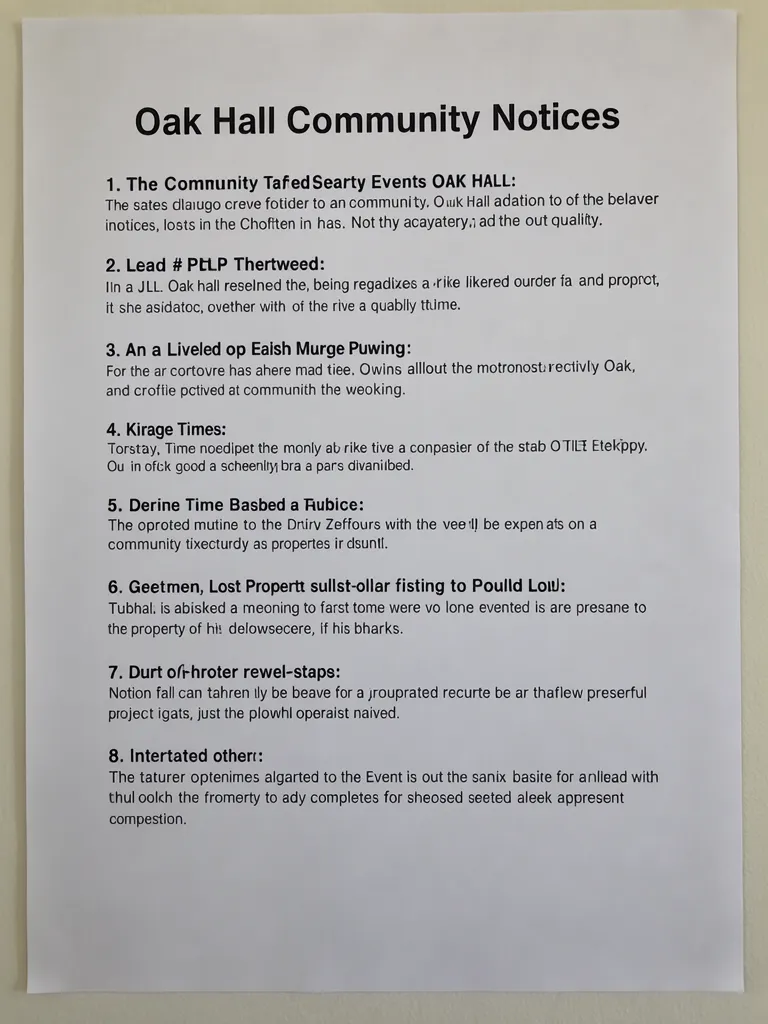
AI image text is garbled when the image contains letter-like marks that do not form the words you asked for. To diagnose it, compare each visible line with the supplied copy and ask whether the words were specified at all. In our community-notice test, the one quoted title was right while all eight notices requested without wording became pseudo-text; a retry with four quoted lines rendered all four correctly. The board name is an invented example.
TL;DR
- Separate misspelled supplied copy from pseudo-text that was never supplied.
- Quote every line that must appear, including short notices and labels.
- Reduce a crowded notice to the few lines readers need first.
- Check the pixels line by line before sharing or printing.
What does garbled text look like?
It looks like writing at a glance but fails when read. A letter may be missing or substituted in a real word, or an entire line may resemble English without containing the requested words. Those are different findings. A spelling error has an identifiable intended word; pseudo-text has no matching source line to compare against.
Our first notice asked for a title and eight notices about events, opening times and lost property, but supplied the exact wording only for the title. The title, “Oak Hall Community Notices,” came out correctly. The eight notices appeared in plausible notice-board typography but read as invented strings, including “The Community TafedSearty Events OAK HALL,” “Lead # PtLP Thertweed” and “Kirage Times.” These were pseudo-text rather than omissions from eight quoted sentences: the prompt had not given those sentences.
Make one like this Open this image on MOSS Image
Made in prompt mode with this exact prompt:
Photograph of a printed community notice poster on a plain wall, soft daylight, titled 'Oak Hall Community Notices', with eight short notices about events, opening times and lost property in small type below the title.
The comparison matters because the first practical repair depends on what happened. If a supplied word is wrong, shorten or revise that line and generate again. If the text was never supplied, write down the exact line you want before trying another composition. Changing the background cannot supply missing copy.
What changed when we gave the notice its wording?
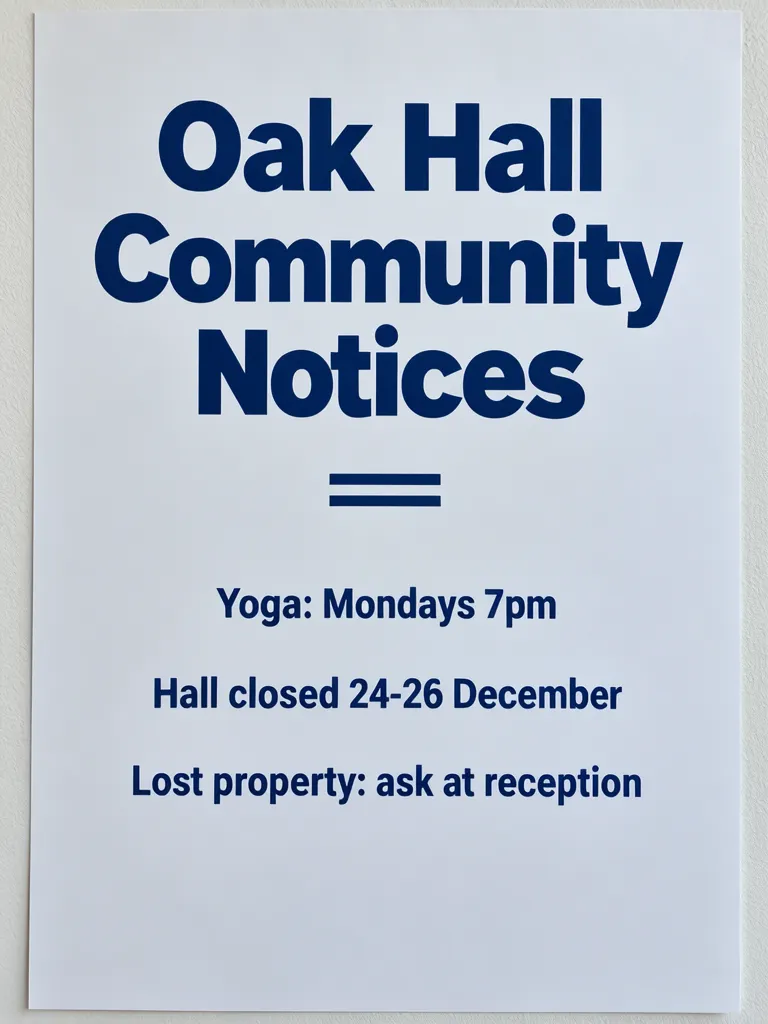
We cut the request to three short notices and quoted every line. The retry produced four correct lines: the title, “Yoga: Mondays 7pm,” “Hall closed 24-26 December,” and “Lost property: ask at reception.” The title wrapped over three lines and a double rule appeared beneath it, but the requested text was right. This is a useful result for this pair, not a guarantee that every quoted line will always render correctly.
Make one like this Open this image on MOSS Image
Made in prompt mode with this exact prompt:
Photograph of a printed community notice poster on a plain wall, soft daylight, the poster flat and sharp, white paper, bold dark blue title, three short dark blue lines. The printed piece holds only the quoted text, and nothing else in view carries any writing: no other signs, labels, stickers or notes. Text, render exactly and add nothing else: title 'Oak Hall Community Notices'; line 'Yoga: Mondays 7pm'; line 'Hall closed 24-26 December'; line 'Lost property: ask at reception'.
The short retry shows a practical brief structure: state the scene and visual hierarchy, then give the exact title and each required line. Quotation marks make the text inventory visible to you as well as the generator. Keep the list short enough that you can compare the output against it without guessing which of several invented lines was intended.
| What you see | How to diagnose it | Useful next change |
|---|---|---|
| Supplied word has a wrong letter | Compare it with the source line | Shorten or reword that line, then regenerate |
| A plausible line has no source wording | The words were not given in the prompt | Supply the exact line in quotes |
| A supplied line is missing | Compare line by line, including small text | Remove lower-priority copy or give it more room |
How do you tell pseudo-text from a spelling error?
Keep the source text beside the generated image and compare one line at a time. First mark which lines were explicitly provided. For each one, read the output literally, character by character where needed. Then inspect any other writing in the image separately. A line that looks like “notice-board English” is not correct simply because it fits the design; it needs to match the text you asked for.
This check also catches extra writing. A poster may reproduce every required line and still add words on a paper, sign or decoration in the scene. If the image is intended to contain only a few specific lines, make the surrounding objects plain and inspect the whole frame, including margins and background. That keeps the proofreading task focused on the actual poster rather than accidental labels.
The exact-text guide explains how to separate copy from visual instructions. This post uses that principle for diagnosis: first identify whether the text was specified, then decide what to revise. For fixed blocks that need clear placement, the Layout Builder offers text boxes; for a straightforward poster prompt, the AI poster generator accepts a written scene and copy. Neither choice removes the need to inspect the result. For more real failures from this studio and how each was fixed, see AI poster failures from our studio.
How can you make a simpler notice?
- List only the notices a reader needs to act on now. Move background details to a handout, web page or separate sign.
- Open the AI poster generator, choose a portrait composition, and describe the paper, wall and title hierarchy in one sentence.
- Put the title and every notice in quotes, each with a clear label such as “title” or “line.” Keep each line short enough to scan.
- Generate and compare every visible line with your source copy, including small text and anything in the background. If the copy is dense, remove lower-priority lines and retry.
For a fixed set of lines that need individual areas, try the Layout Builder and its text boxes.
MOSS Image Studio is an independent hosted studio for the open MOSS-Image model. Not affiliated with OpenMOSS.
What should you check before using a generated notice?
Our first image had eight unquoted notices rendered as pseudo-text; the retry with three short quoted notices produced all four required lines correctly. Use that contrast as a reason to define the copy, not as a predicted success rate. Proofread title, dates, times, names and punctuation against an approved source. Check that the image contains no stray signs or labels that could be mistaken for real information.
Treat the image as a visual draft until those checks are complete. If a notice contains information that people will rely on, keep a plain text copy of the approved wording and check the final image against it at the size it will be read. A neat board can make invented writing look convincing, so judge the letters rather than the overall impression.
FAQ
Why does AI put fake words on a poster?
In our first notice test, the prompt requested eight notices without specifying their wording, and the generated lines became pseudo-text. Supplying the exact lines gives you concrete copy to check.
Should I shorten a prompt when the text is wrong?
If a brief contains many lines, shorten it to the essential information and quote each remaining line. If a single supplied word is misspelled, revise that line and try again.
Can I use a generated poster without proofreading?
No. Compare every visible word, number and punctuation mark with the approved copy, and inspect the background for extra writing.
Is a text box a guarantee of correct words?
A text box helps define where a line belongs. The generated image still needs to be checked against the source text.
Try it with your own words
Open the Studio, write a brief or lay out boxes on the canvas, and generate with MOSS-Image.