AI Poster Text Hidden by Illustrations: How to Tell Why
Learn to distinguish a covered letter from a misspelling with five plant poster results, then choose whether to move the object or revise the text.
When AI poster text looks hidden, inspect the pixels before calling it a spelling error. In our plant-swap tests, none of four layout and written-prompt images covered a letter, even when two prompts asked for leaves over text. The wrong letters were spelling errors. A separate photo did hide the end of a line behind a real plant, while the visible letters were spelled correctly. Those are different problems and need different fixes.
TL;DR
- Check whether an object physically covers the letter or the letter is wrong in open space.
- Move an occluding object or its box; regenerate or shorten misspelled copy.
- Compare results made with the same seed and the same text.
- Proofread the edge of illustrations, plants and other foreground objects.
How can you tell occlusion from a spelling error?
Look at the edge of the object. If a leaf or illustration cuts across the letter and the stroke disappears exactly at that boundary, the text is occluded. If the wrong character is fully visible in open space, the problem is spelling. Cropping the image tighter will not repair a misspelling, and changing a word will not move a plant off the poster.
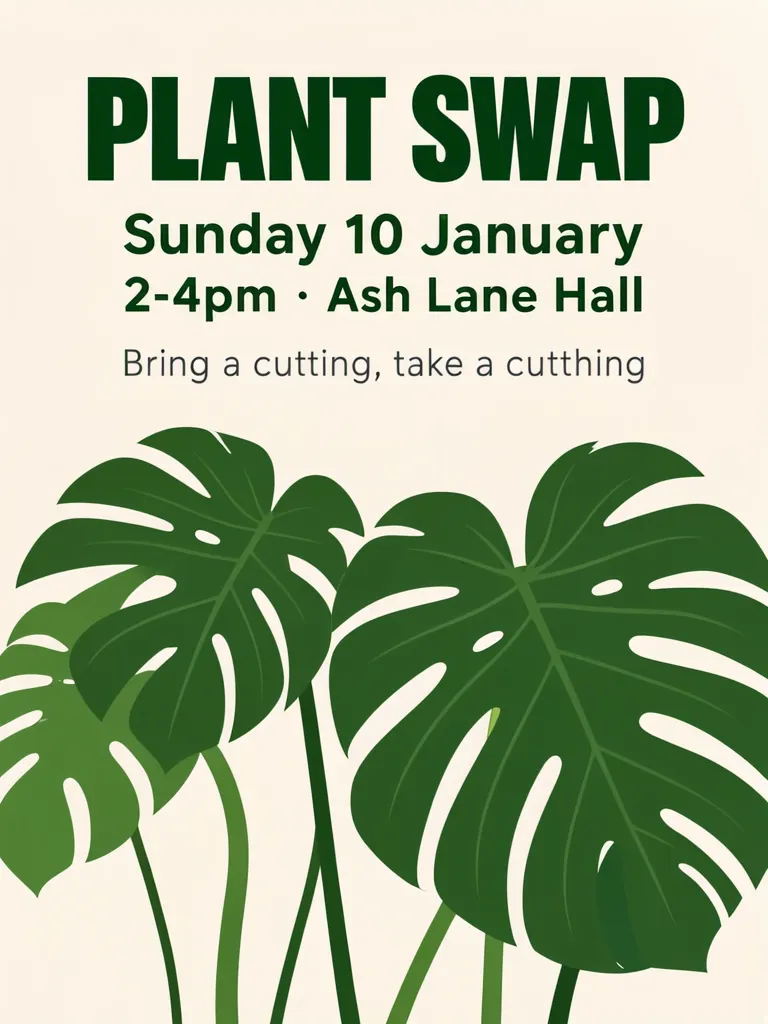
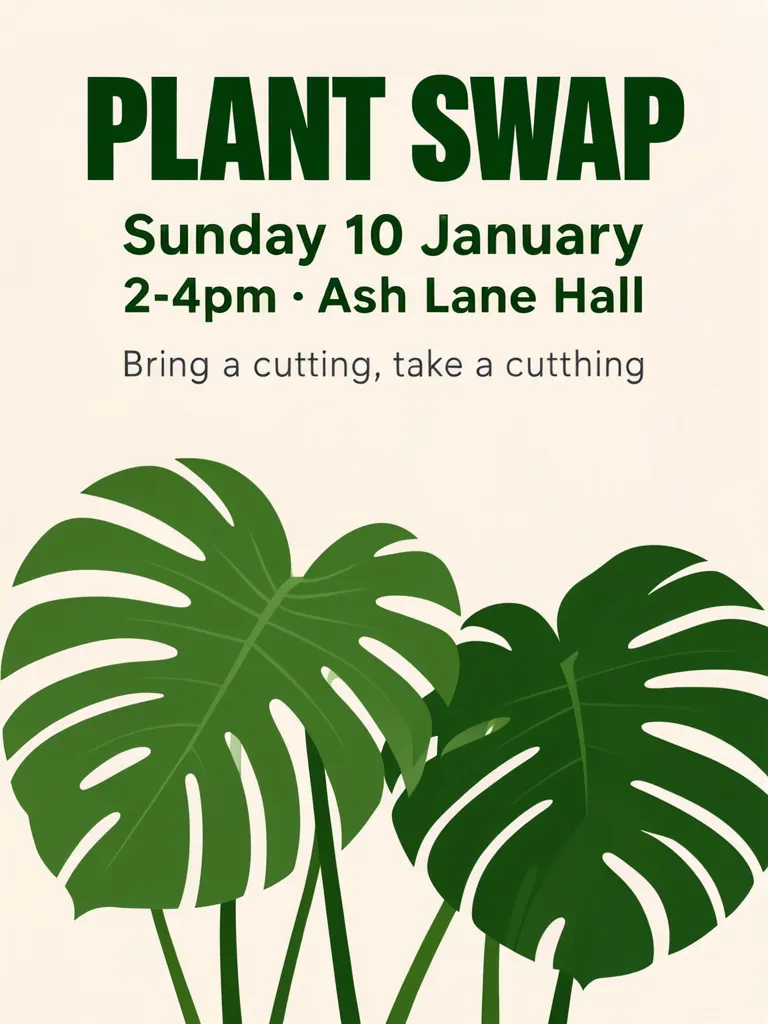
We used the same plant-swap copy in four layout and written-prompt images. Two explicitly asked for leaves to pass over the text. None covered a letter. The wrong letters were visible in open space, so they were spelling errors rather than hidden strokes.
A third reading is worth ruling out before either of those: a softly rendered background or edge. If the letters themselves are sharp and only what sits behind them is soft, the text is neither occluded nor misspelled, and the background-blur report covers that case.
The poster and event details are invented examples.
Make one like this Open this image on MOSS Image
Made in the Layout Builder with these boxes:
| Box text / object | Purpose | Approximate position |
|---|---|---|
| PLANT SWAP | Headline | Top |
| Sunday 10 January | Date | Below title |
| 2-4pm · Ash Lane Hall | Time and place | Below date |
| Bring a cutting, take a cutting | Note | Below details |
| Monstera leaves | Illustration | Box over most of canvas |
The leaf box crossed the whole canvas, including the title area, but the generated leaves started below the final line. The note still contained the misspelling “cutthing.” The separated version used the same seed and same text, so it produced almost the same picture and the same misspelling. It did not demonstrate that separating the boxes fixed spelling.
Make one like this Open this image on MOSS Image
Made in the Layout Builder with these boxes:
| Box text / object | Purpose | Approximate position |
|---|---|---|
| PLANT SWAP | Headline | Top |
| Sunday 10 January | Date | Below title |
| 2-4pm · Ash Lane Hall | Time and place | Below date |
| Bring a cutting, take a cutting | Note | Below details |
| Monstera leaves | Illustration | Box below the text |
What happened when the prompt explicitly asked for overlap?
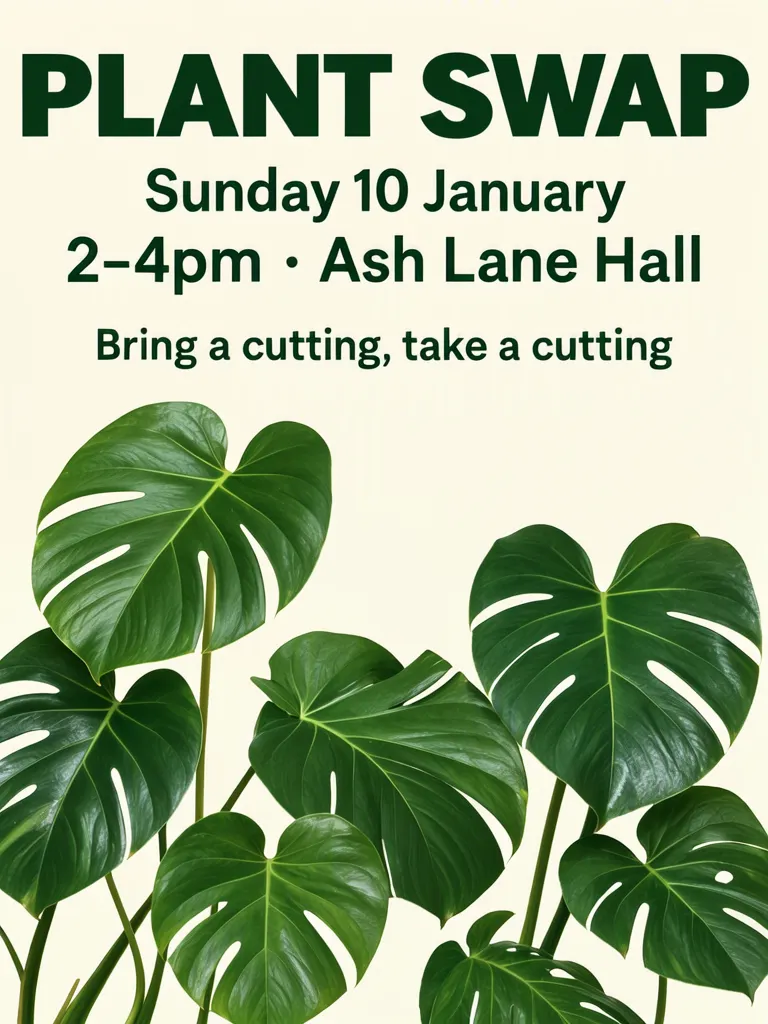
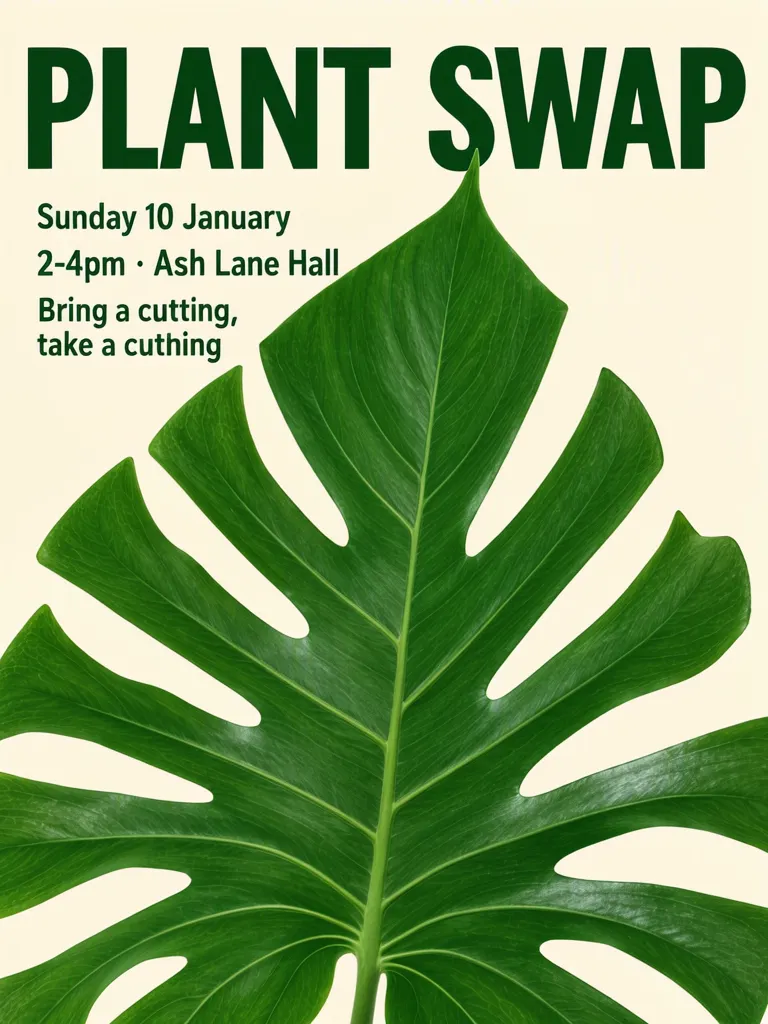
The written-prompt pair makes the distinction clearer. The first asked for a leaf tip in front of the title. The tip only touched the bottom of the “S”; no letter was hidden. Its note misspelled the phrase differently and wrapped to two lines. The paired clear version, with the same seed, put leaves below the text and spelled all four lines correctly. That comparison is one result, not proof that moving leaves corrects text.
Make one like this Open this image on MOSS Image
Made in prompt mode with this exact prompt:
Flat poster on pale cream, dark green type at the top. A large monstera leaf grows up from the bottom and its tip passes in front of the title, covering the lower part of the middle letters; the other lines are clear. The poster holds only the quoted text: no logo, no signature and no other words. Text, render exactly and add nothing else: title 'PLANT SWAP'; line 'Sunday 10 January'; line '2-4pm · Ash Lane Hall'; line 'Bring a cutting, take a cutting'.
Make one like this Open this image on MOSS Image
Made in prompt mode with this exact prompt:
Flat poster on pale cream, dark green type at the top. Large monstera leaves grow up from the bottom and stop well below the last line; nothing passes in front of any text. The poster holds only the quoted text: no logo, no signature and no other words. Text, render exactly and add nothing else: title 'PLANT SWAP'; line 'Sunday 10 January'; line '2-4pm · Ash Lane Hall'; line 'Bring a cutting, take a cutting'.
Ideogram’s text-in-images documentation recommends quoting exact wording and describing where it belongs; it also describes separate text elements with their own bounding boxes in JSON prompts. That is one way to express text regions, but generated placement still needs inspection. See the Ideogram text-in-images documentation.
What does real occlusion look like?
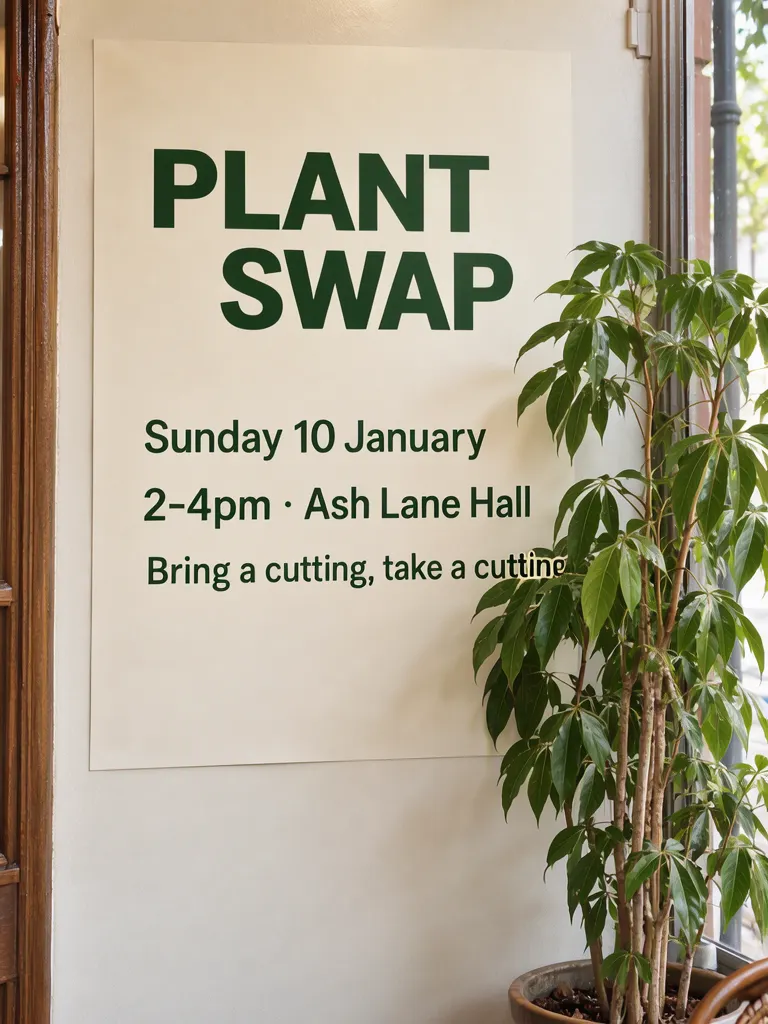
A photographed plant in front of the poster hid the end of the final line. The visible portion reads correctly; leaves cover the rest. This is the actual occlusion example. Move the plant or the poster’s position in the scene so the full line is visible. If an illustration box is responsible, reposition or resize that box before generating again.
Make one like this Open this image on MOSS Image
Made in prompt mode with this exact prompt:
Photograph of a printed poster on a café wall, soft daylight, with a tall leafy potted plant standing in front of it: the plant's leaves cover the lower right corner of the poster, so the end of the last line is partly hidden behind leaves. Cream paper, dark green type. The printed piece holds only the quoted text, and nothing else in view carries any writing: no other signs, labels, stickers or notes. Text, render exactly and add nothing else: title 'PLANT SWAP'; line 'Sunday 10 January'; line '2-4pm · Ash Lane Hall'; line 'Bring a cutting, take a cutting'.
Which fix fits the problem?
| What you see | Diagnosis | Next action |
|---|---|---|
| A stroke ends exactly at a leaf edge | Occlusion | Move the object or its layout box |
| A fully visible word has a wrong letter | Spelling error | Regenerate or shorten that line |
| A word wraps and the end sits behind a foreground object | Both may be involved | Check the visible spelling, then move the object or revise the line |
For Chinese copy, inspect characters at full size; see Chinese missing strokes in generated posters. Check small type separately with the small-print readability test.
How should you test a suspected overlap?
- Keep the wording and seed fixed while changing only the object placement, as in the layout comparison.
- Use the Layout Builder to put text and artwork in distinct regions. For a written prompt, use the AI poster generator, quote each line, and describe the object’s position relative to the text.
- Compare the same letter in both images. Follow its outline: does it stop at the object edge, or is a wrong glyph visible in clear space?
- If it is covered, move the object or its box. If it is misspelled, shorten the line or regenerate. The exact-text guide covers quoting and checking copy.
MOSS Image Studio is an independent hosted studio for the open MOSS-Image model. Not affiliated with OpenMOSS.
What should you check before using the poster?
In the four layout and written-prompt examples, including two that requested leaves over text, no picture covered any letter; the errors were “cutthing” and “cuthing.” The photographed plant did create real occlusion: the end of a correctly spelled line is hidden. Inspect the boundary before choosing a fix. Then proofread every line in open space, and view the complete poster at the size it will be shared or printed.
FAQ
If part of a word is missing, should I regenerate the image?
First check whether an object covers the missing part. Move the object if the letters stop at its edge; regenerate or shorten the wording if the visible text itself is wrong.
Can moving an illustration fix a misspelled word?
No. Moving it can uncover a covered letter, but a spelling error needs a text correction or another generation.
Why compare images made with the same seed?
Holding the seed and text steady makes the layout change easier to inspect. It does not guarantee identical images or prevent spelling errors.
Sources
- Ideogram: Text in Images — Checked on 2026-11-04.
Try it with your own words
Open the Studio, write a brief or lay out boxes on the canvas, and generate with MOSS-Image.